The asset screen
Service → Assets, then any serial number. An asset is one physical machine at a customer site, and this screen is everything BMS knows about it.
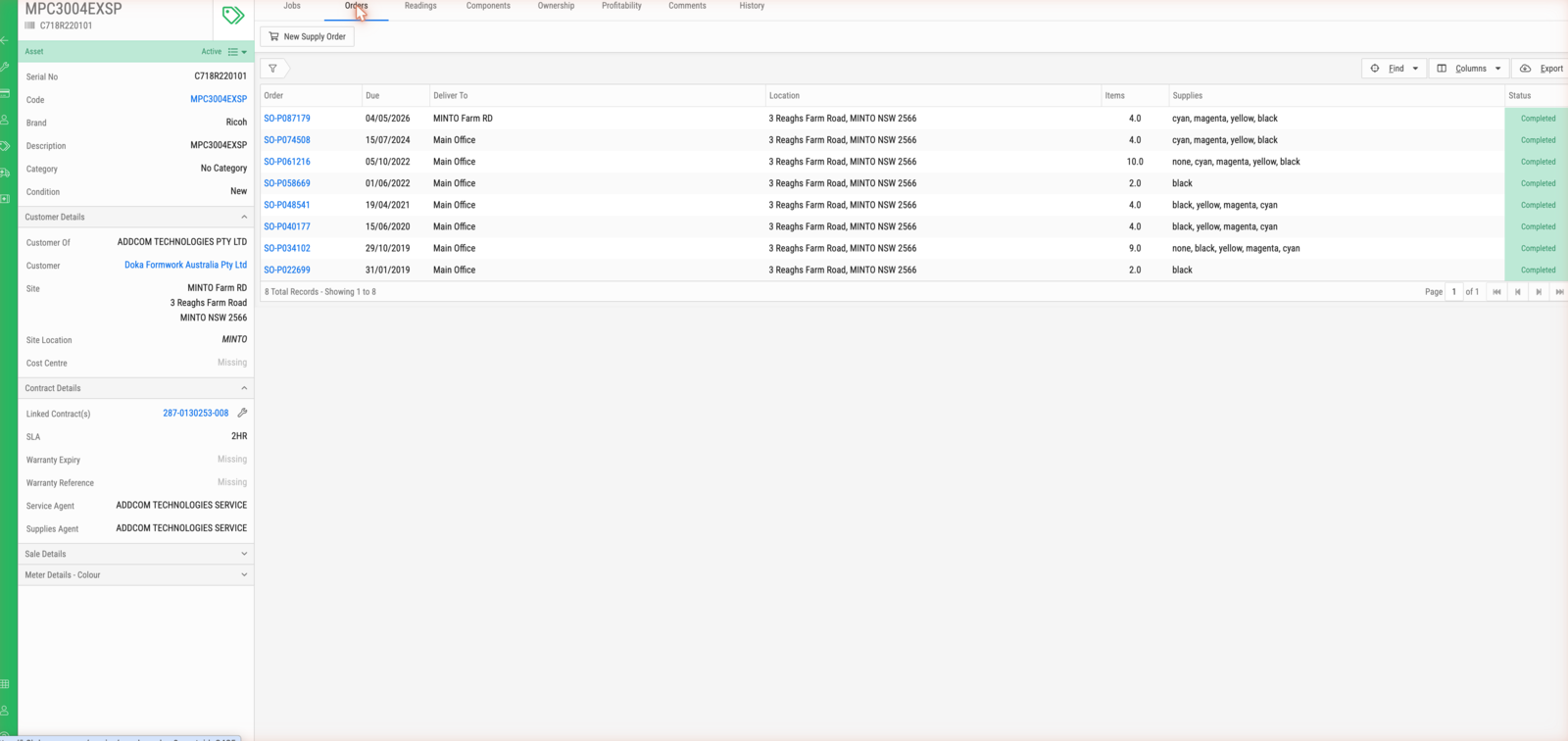
The summary pane
| Group | Fields |
|---|---|
| Asset | Serial No, Code, Brand, Description, Category, Condition |
| Customer Details | Customer Of, Customer, Site and address, Site Location, Cost Centre |
| Contract Details | Linked Contract(s), SLA, Warranty Expiry, Warranty Reference, Service Agent, Supplies Agent |
| Sale Details | How the machine was sold |
| Meter Details | Meter configuration — Colour where the machine is a colour device |
Note
Service Agent and Supplies Agent are separate fields. They are often the same, and they do not have to be: who fixes a machine and who sends its toner can be different businesses.
Tabs
| Tab | Contents |
|---|---|
| Jobs | Every service job raised against this asset |
| Orders | Supply orders raised against this asset — and where new ones are raised |
| Readings | Meter readings captured for the machine |
| Components | Fitted components |
| Ownership | Who has owned the machine, and any transfers |
| Profitability | What the machine has earned and cost |
| Comments | Notes against the asset |
| History | Audit trail of changes |
The Orders tab
| Column | Description |
|---|---|
| Order | Supply order reference, SO-P followed by six digits |
| Due | When the order was due |
| Deliver To | The delivery point — a named site, or Main Office |
| Location | Full delivery address |
| Items | Number of items on the order |
| Supplies | Which consumables, by colour |
| Status | Where the order got to |
New Supply Order raises one. Export downloads the list.
The assets list
View Assets by meter switches to a meter-oriented list. View Assets on Loan and View Inactive Assets show assets excluded from the default view; the default list is active assets, and the Active MIF public filter is the machines-in-field view.
| Column | Description |
|---|---|
| Asset Owner | Serial number as the owner knows it |
| Serial No, Reference, Brand, Product Code | Identity of the machine |
| Owner | The customer |
| Suburb, Location Name, Location Description | Where it is |
| Condition | new, used |
| Date Sold, Sales Value, Sales Order | How it was sold |
| Financed By | The finance agent, where financed |
| Status | Active, Returned, and other lifecycle states |
Note
The small icon at the far left of each row is the contract indicator, and it is easy to miss. A solid blue icon means the asset is on a service contract; an outline icon means a finance contract; no icon means no active contract at all. It is the fastest way to spot machines in the field that nothing covers.
Reports from the index: Asset Details, Asset Components, and Supply Order Yield Summary.
Creating an asset
New Asset opens a four-part form: the customer (then site, site location and an optional cost centre); identity (serial, reference, product code — which pre-fills brand, description and category); meter configuration (up to three Asset Meter Types, plus Add Scans Meter toggles); and sale details (condition, sales order, date sold, sold by, sold price, financed by).
Important
Link the sales order line if there is one. Doing so pre-fills the product details and makes the asset inherit the actual component parts recorded on that order — which is what supports made-to-order machines without anyone adding components by hand. An asset created without the link starts empty and has to be built up manually.