The build progress track
Every build on a deal shows two rows of dots on its right-hand side — Order and Asset. Together they are the build's whole journey, and hovering any dot names the stage and its state.
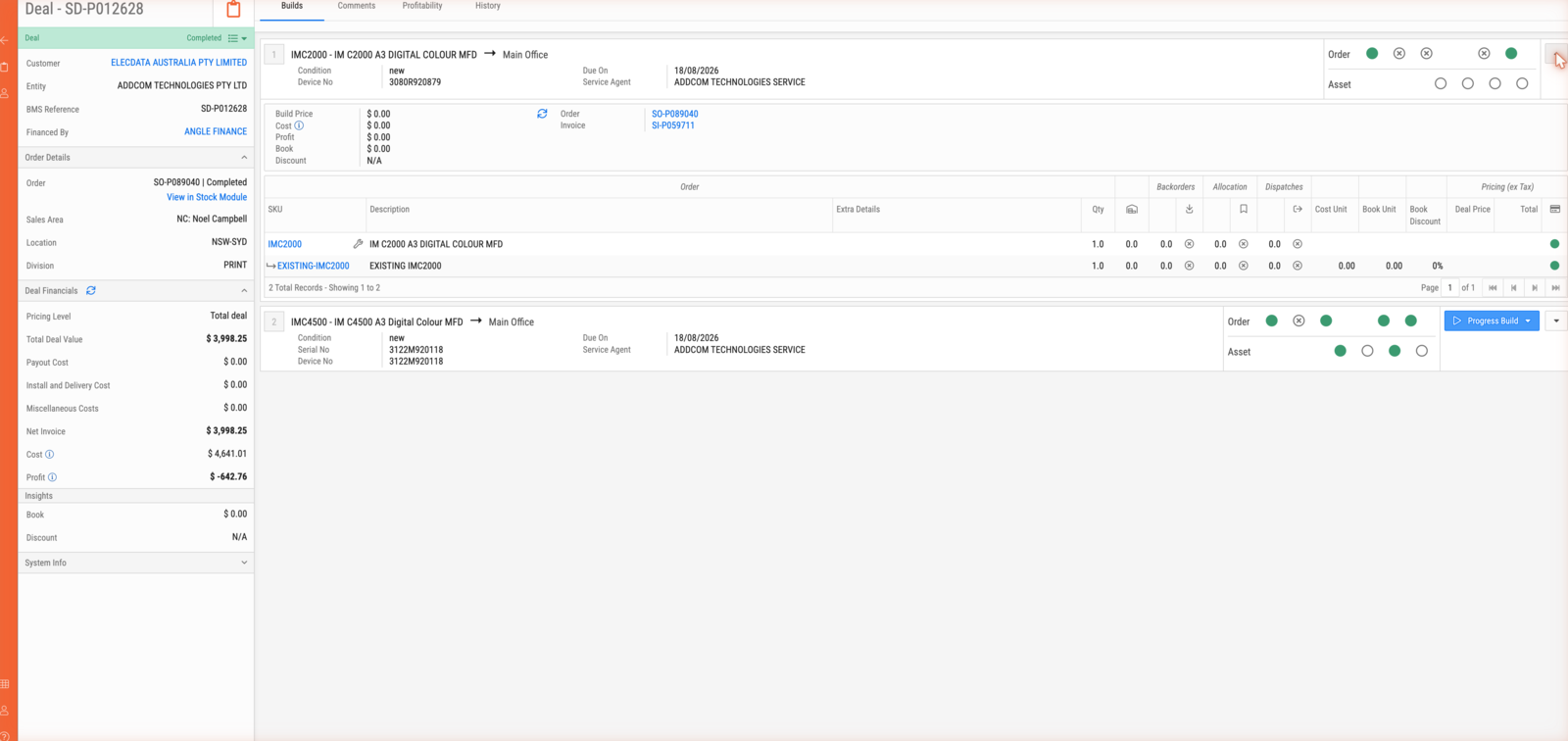
The Order track
Getting the goods to the customer.
| # | Stage | What it means |
|---|---|---|
| 1 | Components | The build has a bill of material |
| 2 | Backordering | Items not in stock have been backordered |
| 3 | Stock Allocations | Stock has been claimed for this build |
| 4 | Dispatching | Goods have been dispatched |
| 5 | Invoicing | The build has been invoiced |
The Asset track
Turning delivered goods into a machine in service.
| # | Stage | What it means |
|---|---|---|
| 1 | Asset Creation | The build is linked to an asset record |
| 2 | Runup Job | A runup service job exists — pending, then completed |
| 3 | Asset Ownership | Where the asset is: at a warehouse, or at the customer |
| 4 | Install Job | An install service job exists — pending, then completed |
Reading the dots
| Appearance | Meaning |
|---|---|
| Hollow grey | Not started |
| Yellow | In progress |
| Solid green | Done |
| Crossed circle | Not required for this build |
Important
Components comes first for a reason. Stock cannot be allocated to a build that has no bill of material — the allocation has nothing to allocate against. If Stock Allocations refuses to move, check that the first dot is green.
Asset Ownership goes green only when the asset is at the customer. An asset still sitting at a warehouse reads as not done, which is correct: the machine has been created but not yet handed over.
Expanding a build
The arrow at the far right of a build row expands it, showing the build's price, cost, profit, its order and invoice references, and its bill of material with column groups for Order, Backorders, Allocation, Dispatches and Pricing (ex Tax).