Follow one contract through a month
By the end of this tutorial you will have traced a single contract from its agreement through one month's billing to the invoice the customer received, and you will be able to read any billing screen in BMS and say what it is telling you.
We will not change anything. Every step is looking, and the point is to see how the five records hand off to each other.
Before we start, you need a BMS sign-in with access to the Billing area. Nothing else.
1. Find a contract to follow
Go to Billing → Contracts.
Choose Active Contracts from Public Filters in the left panel, then pick any contract whose Contract Type involves metering — a print management or meter plan agreement rather than a straight rental. We want one that counts something.
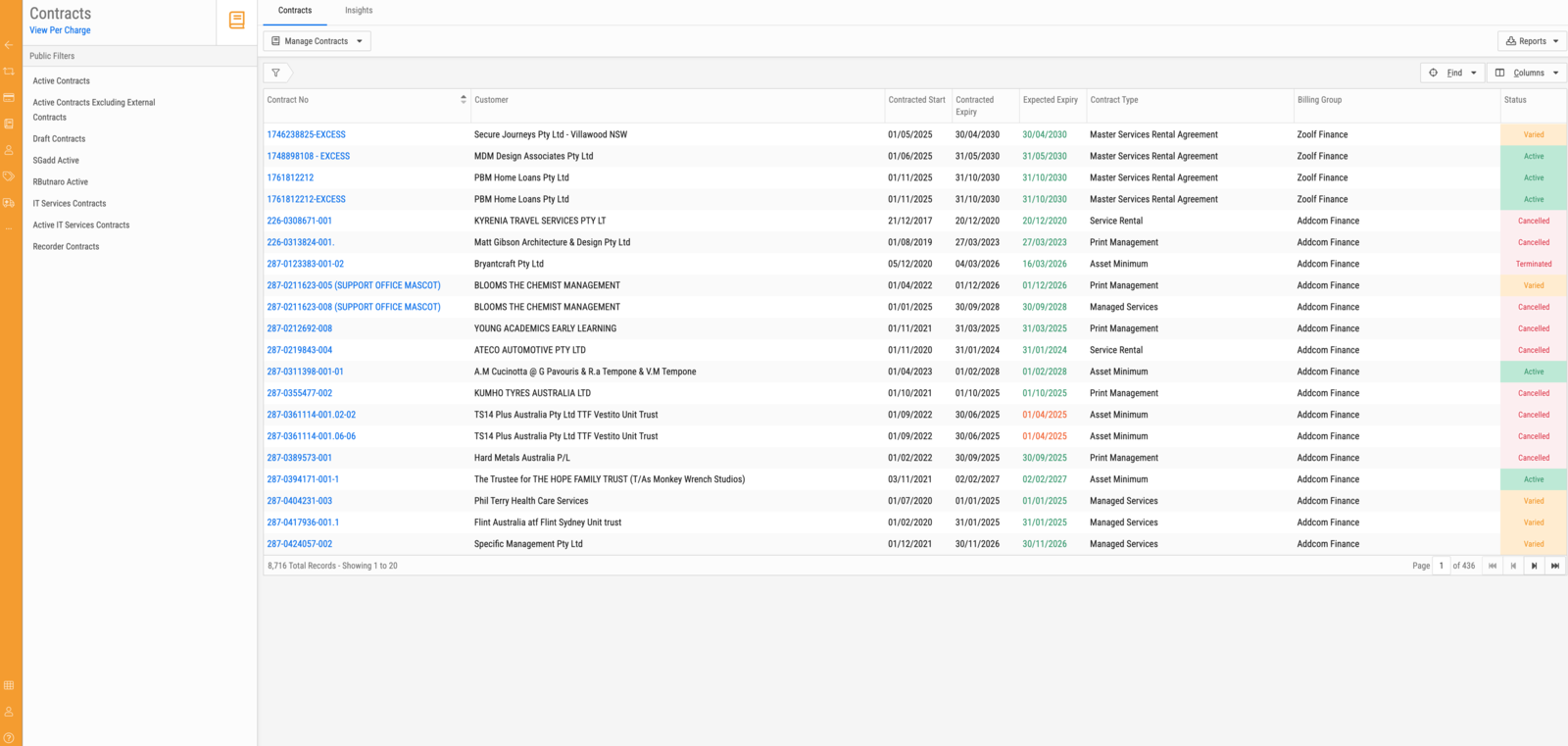
Click its contract number.
You should now see the contract screen: the contract number and type in the header, a panel of details down the left, and a row of tabs across the top.
2. Read the agreement
Look at the left-hand panel first. It answers who and for how long.
Near the top, Customer is who the agreement is with and Billing Entity is who the invoice goes to. On many contracts these are the same. Where they differ, the invoice goes to the entity, not the customer — this is the single most common source of confusion on these screens.
Below, in Contract Details, find Start Date and Expiry Date. The span between them is the contracted term.
Now note the Billing Group. We will use it again later — it is how this contract's monthly work is grouped with everyone else's.
The status beside the contract number tells you where the agreement stands; Contract statuses and actions lists every status and what can be done from it.
3. See what it charges
Open the Charges tab.
Each block is one charge. A charge marked Item fixed bills the same amount every period. A charge with a rate and a volume bills what the meters counted.
Pick any charge and look at its Components table. You should see rows for Finance, Service and Revenue, each with its own amount and, where the component is settled with someone else, an Agent Name.
This is worth pausing on. The customer sees one charge on one line. Behind it, the money is already divided between the party that funded the equipment, the party that services it, and the business itself.
4. See the schedule
Open the Billings tab.
You should now see the contract's periods, grouped by month, each labelled like Billing 12 of 60 with a type beside it.
Scroll to the top. The first one is type Advance — the contract's opening period, fixed charges only, because on day one there is no usage to bill. Everything after it is Cyclical.
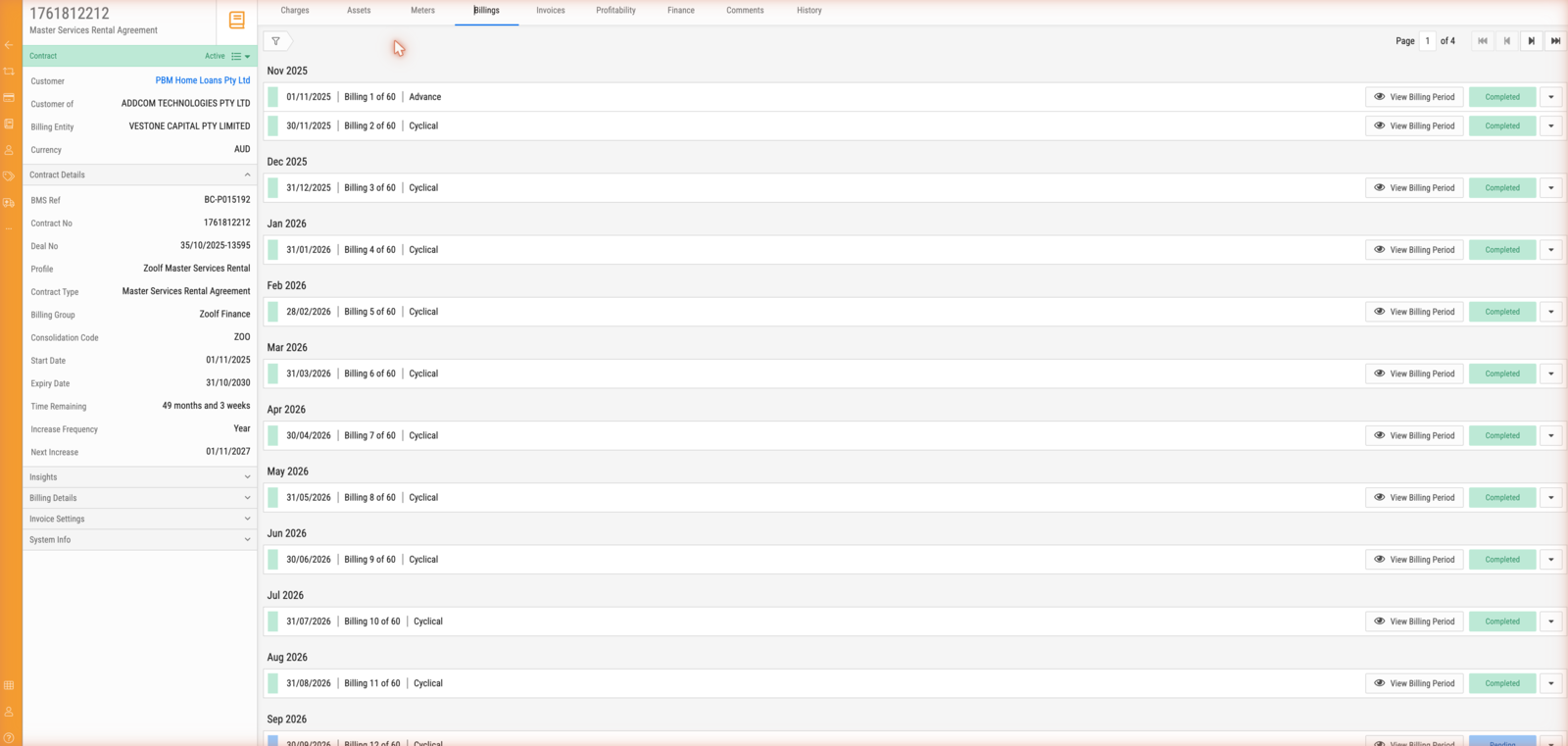
Scroll down to today. Periods before it read Completed. Periods after it read Pending. The whole future of this contract is already laid out.
5. Look at a month that has not happened yet
Find a Pending period a month or two ahead and click View Billing Period.
You should see a mostly empty screen with a message telling you that no transaction has been generated yet, the date one will be generated automatically, and an offer to generate it now.
This is the important idea in this tutorial: the period is a slot, and the transaction is the money. The slot exists for years before the money is calculated.
Now look at Period Details on the left. You should see three date ranges:
- Due On — when the period falls due.
- Base Period — the month the fixed charges cover. Notice it runs forward from the due date.
- Usage Period — the month the metered charges cover. Notice it runs backward.
Read those two ranges again and confirm they are different months. That is not an error. The customer pays in advance for having the equipment and in arrears for using it, and one transaction carries both.
6. Look at a month that has been billed
Use Previous Billing in the left panel, repeatedly, until you reach a period whose status reads Completed.
The screen now has content. At the top is the transaction, with its type and status. Beneath it are the lines.
You should see something like a Rental Charge line covering the base period, and one or more Usage lines covering the usage period, each with a quantity, a unit price and a total. Compare the date ranges on those lines against the Base Period and Usage Period on the left — they match.
Find Readings progress on the transaction. It tells you how many assets and meters were read, and whether the readings came in automatically or were entered by hand.
Find Linked Invoice. Click it.
7. Arrive at the invoice
You are now on the invoice the customer received, generated from the transaction you were just looking at.
If the contract has a consolidation code, this invoice may cover several contracts at once — look for lines you do not recognise from the contract you followed. That is consolidation working as intended.
8. See where the work happens
Finally, go back to Billing → Billings and select the Open tab.
Choose the billing group you noted in step 2 from Public Filters.
You should now see this month's transactions for that group, waiting to be reviewed — your contract's among them, if its period is due. This screen is where the monthly job actually gets done, and it is the subject of Run the monthly billing review.
What you have seen
You followed one contract through the whole loop: the contract holds the agreement, its assets and meters record what is out there, a billing period is one month of it, a transaction is that month's calculated bill, and an invoice is what the customer receives.
You also met the two clocks — base period forward, usage period backward — which govern every date on these screens. If you want to understand why they work that way, and what BMS does when the readings do not arrive, read How contract billing works.