Getting around BMS
The things every screen in BMS has in common: signing in, finding your way between modules, and why a list is showing you what it is showing you.
Signing in
Go to the address your BMS administrator gave you — typically
yourcompany.bmserp.com, or your own domain. Enter your email address and
password and select Login.
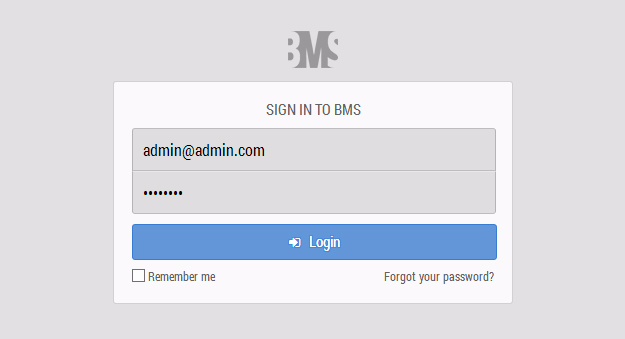
If you have not received credentials, or have forgotten them, use Forgot your password? and enter your email address. A reset is sent to that address if an account exists for it.
Signing out
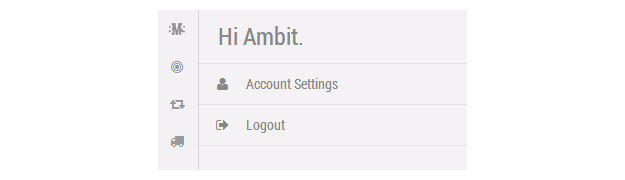
Select the account icon at the bottom left of the menu bar, then Logout. You are returned to the sign-in screen.
The navigation menu
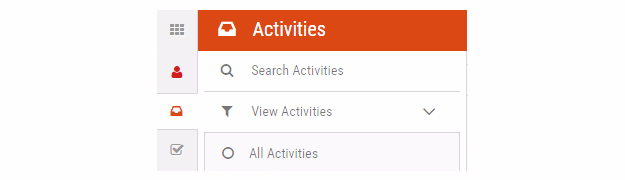
The menu down the left is how you move around the module you are in. Selecting an icon opens a submenu for that section, headed by the section's name. Each submenu has its own colour, so you can tell where you are at a glance.
Moving between modules
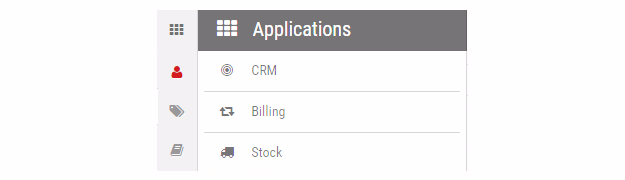
The select application icon at the top left of the navigation menu lists every module you have access to. Choosing one takes you to its landing page.
Why you cannot see everything
BMS shows you what your roles allow, module by module. This applies to which modules you can open and to what you can see or change inside them, so a colleague may see things you do not and vice versa. That is the permissions model working, not a fault — your administrator can tell you which roles you hold.
Is this list filtered?
Many lists are filtered, and it is the most common reason a record seems to be missing. Two things cause it:
- Some lists filter themselves to what is most relevant — CRM tasks, for instance, default to those assigned to you.
- BMS remembers your filters. A filter you applied last week is still applied when you come back.
An unfiltered list shows a plain toolbar:

A filtered one looks like this:

The Filter button offers:
| Option | Effect |
|---|---|
| Load Existing Filter | Apply one of the saved filters for this list |
| Adjust Current Filter | Add attributes to the current filter, or start one |
| Save Current Filter | Save what is applied, so it appears under Load Existing Filter |
Important
Filters persist across screens as well as across visits. In Billing in particular, the billing-month and billing-group filters carry over between screens, including onto a contract's own Billings tab — which can make a contract look as though it has no billing periods at all. If a list is unexpectedly empty, clear the filter before concluding the data is missing.
Pagination
Lists show 20 items per page by default — your administrator can change this. Longer lists are split across pages, with the page controls at the bottom right.

Related
- Users, roles and licences — what decides your access